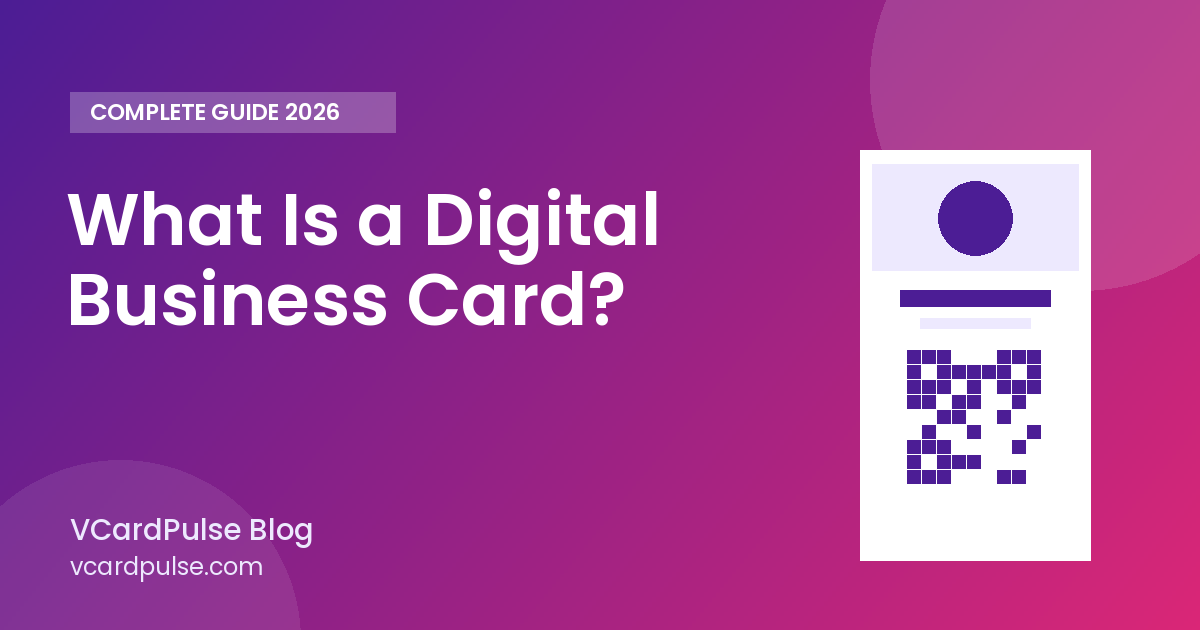
A digital business card is an online version of the paper visiting card you hand out at meetings. Instead of a small printed rectangle, it is a mobile-friendly web page with your name, role, contact details and links that anyone can open on their phone. You share it with a link, a QR code or a message on WhatsApp, and the other person can call you, email you or save your contact with a single tap.
This guide explains how digital business cards work, what you should put on one, and how to create your own in a few minutes.
How a digital business card works
At its core, a digital business card is a small web page with a unique address, for example vcardpulse.com/c/your-name. Because it is a web page, it opens in any browser on any phone or computer. Nobody needs to install an app to view it.
There are three common ways to share it:
- Link — paste it into WhatsApp, email, SMS, LinkedIn or your email signature.
- QR code — print it on a table stand, flyer, product packaging or a slide at the end of a presentation. People scan it with their phone camera.
- NFC — some people write the link onto an NFC tag or card, so a tap on a compatible phone opens it.
When someone opens your card, they see buttons for the actions that matter: call, WhatsApp, email, website, directions and Save Contact. The Save Contact button downloads a standard vCard (.vcf) file, which adds your details to their phone's address book without any typing.
Digital business card vs. a simple link-in-bio page
Link-in-bio pages are built for social media audiences and usually show a list of links. A digital business card is built for professional contact exchange. The key differences are:
- It is centred on you or your business — photo, name, designation, company and a short bio.
- It includes one-tap contact actions like call, WhatsApp and Save Contact.
- It often supports business extras such as a product catalogue PDF, a map location, payment details or a Google review button.
What to put on your digital business card
Keep it short and useful. A good card answers three questions quickly: who you are, what you do and how to reach you.
Essentials
- Your full name and a clear, friendly photo or logo
- Designation and company name
- Phone number and WhatsApp
- Business email address
- Website and business address (if you meet clients in person)
Helpful extras
- A two or three sentence bio that explains what you do and who you help
- Social profiles that you actively use, such as LinkedIn or Instagram
- A catalogue or price list as a PDF
- A Google review link, so happy customers can leave feedback easily
- UPI or payment details if you collect payments in person
Avoid adding everything you can think of. Every extra button competes for attention, so include only the links you want people to use.
Benefits of going digital
Always up to date
If you change your phone number, job title or office address, you edit the card once and everyone who has your link sees the new details. With paper cards you would need to reprint.
Easy to share anywhere
You can share a digital card in a chat, in an email, on a slide or on a printed QR code. You never "run out" of cards at an event.
Contacts saved correctly
Typing a phone number from a paper card often leads to mistakes. The Save Contact button saves your exact details, including your photo, straight into the other person's phone.
Less printing
A digital card reduces the need to print large batches of cards that may be thrown away or become outdated.
Works for any business
Freelancers, consultants, shop owners, real estate agents, doctors, restaurants and sales teams can all use the same idea. Some businesses also create special cards, such as a Google review card for the shop counter.
How to create a digital business card
With VCardPulse the process takes a couple of minutes:
- Create your free account with your email or Google.
- Choose Visiting Card and fill in your name, role, contact details and photo. You can even scan your old paper card with AI to fill the form automatically.
- Pick a theme and a short link (your slug).
- Publish and share your link or download your QR code.
You can see everything that is included on the features page. The first month is free, and after that you can keep the card live for a small monthly fee — details are on the pricing page.
Tips for a card people actually use
- Use a real photo or a clean logo. Faces and logos help people remember who you are.
- Write your bio for the reader. Focus on what you help with rather than a list of titles.
- Test it on your own phone. Tap every button to make sure the number, email and links work.
- Put the QR code where conversations happen — on your desk, at your shop counter, on brochures and at the end of presentations.
- Add the link to your email signature so every email becomes a chance to share your details.
Frequently asked questions
Does the other person need an app?
No. A digital business card is a normal web page, so it opens in any phone browser. Saving the contact uses the phone's built-in contacts app.
Can I print a QR code for my digital card?
Yes. You can download the QR code and print it on anything — flyers, table stands, stickers or even on your old paper cards.
Can I change my details later?
Yes. Edit your card at any time and the same link and QR code keep working with the updated information.
Is my card public?
A published card is visible to anyone who has the link. Only add information you are comfortable sharing, and you can choose whether search engines should list your card.
Conclusion
A digital business card is a simple upgrade from paper: one link that is always current, easy to share and easy to save. If you meet clients, customers or partners regularly, it is worth setting one up. Create your free digital card and share it in your next conversation.